A Complete Agency Guide to Google Indexing Problems
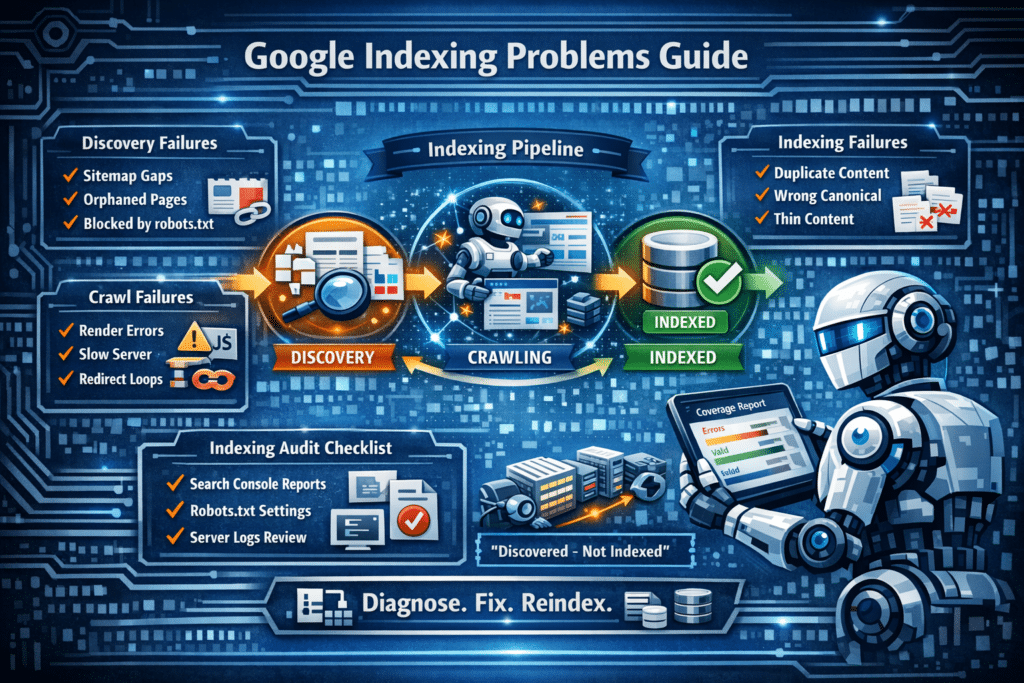
Indexation issues are probably the class of technical SEO problem that creates the most distress among clients, and, unfortunately, the most confusion too. It’s possible for a site to be functioning fine in a web browser yet Google having indexed no part of its monetizable content. Knowing precisely why Google doesn’t index a particular page, and how to remedy it, is perhaps the most useful skill a technical SEO expert could have.
This article details all the major types of indexation failure, how they should be diagnosed, and how to repair them correctly – designed for agency staff who have to explain this to the client and solve the problem effectively.
The Indexing Pipeline: What Has to Go Right
Understanding what should be done before pinpointing the problem will help solve it effectively. The inclusion of a webpage by Google happens through three stages: discovery (when Google must discover the website URL), crawling (when Googlebot must successfully crawl the page content), and indexing (when Google must determine the importance of the webpage for its database).
All these failures lead to a “not indexed” status, but fixing them and finding out what happened depends totally on which of the three failed. Most clients and even beginners assume that there is only one problem and only one solution for the “not indexed” status, and this is far from the truth. Checking for the status in Google Search Console through URL Inspection is fast, but correctly interpreting the results can be quite difficult.
Discovery Failures: Google Doesn’t Know the Page Exists
A page which has never been discovered by Google shows up as “URL is not on Google” in Search Console. Discovery issues usually affect:
Never-discovered pages. Pages that have been newly added to the website, have not been linked to any existing indexed page, nor submitted through a sitemap, may take several days or even weeks before getting discovered using conventional crawling techniques.
In such cases, the solution would be to submit the URL via the URL Inspection tool in Search Console and make sure that the page is part of the XML sitemap.
Non-mapped pages. Pages which exist but are not part of the sitemap created by plugins such as WooCommerce, Elementor, and many other WordPress plug-ins may end up never being discovered by Google. It is common practice during a technical SEO audit to check the sitemap architecture.
Orphaned pages. Pages not linked internally will be reachable only through the sitemap. If these pages are not even mentioned in the sitemap, then the page will be entirely unreachable for Google. A quarterly internal link audit that highlights pages with zero or one backlinks needs to be conducted on an active website.
Disallow in robots.txt. The Disallow command in the robots.txt file tells Googlebot not to crawl or index any page within that URL or URL pattern. Importantly, Google may be aware of the existence of a page if it is indexed in the sitemap while being blocked in the robots.txt file. This contradictory setup is confusing for Google and requires either deletion from the sitemap or unblocking from robots.txt.
Crawl Failures: Google Found the Page but Couldn’t Read It
Crawl issues can be found in Search Console under one of these statuses: “Crawled – currently not indexed”, “Discovered – currently not indexed”, or through crawl issue reports. This means that the page’s URL is known by Google, yet the attempt to fetch the content either failed or returned content considered unsatisfactory by Google.
Render blocking JavaScript. Websites that depend on JavaScript libraries for injecting the core content, such as descriptions of products, the content of articles, navigation links, etc., can experience crawling problems due to Googlebot’s limited JavaScript rendering resources. Google uses a queuing system to render webpages, which can take days or even weeks after the first attempt to crawl the webpage. Webpages that can be seen only in a rendered version will have a serious problem in the crawling phase.
Server response problems. Erratic 5xx codes, server response times over 2.5 seconds, and connection timeouts are all causes of crawl failures, which aren’t always reflected in Search Console as permanent errors because Google makes a second attempt, hence a crawl failure won’t become visible until it’s repeated. Server response times and server errors should only be checked separately for Googlebot user agents (identifiable in the server logs).
Redirect Chains and Loops. When the page at URL A links to page B, which in turn links to page C, the result is a redirect chain. Google tends to follow redirect chains of up to five steps, although it will prioritise crawling pages that don’t require many redirects. If a page at URL A links to page B, which redirects to A, then there is a redirect loop, and no indexing can occur.
Indexing Failure: Google Crawled the Page but Didn’t Want to Index It
The indexing failure is the most subtle one since it requires an understanding of what Google considers a good-quality website. Here are some of the common indexing failure causes listed in Search Console:
“Duplicate without user selected canonical.” The Google system found that the content on this page is very similar to another page and therefore decided to index the other one. The solution is to include a canonical tag for this page pointing to the correct page. If there are duplicate pages on the website, the content needs to be revised, or the duplicate needs to be redirected.
“Alternate page with proper canonical tag.” This message is displayed on pages that contain a canonical tag leading to another page. This is a normal state where a canonical tag is used; Google does not index such pages. However, if this message is displayed on pages that need to be indexed, it means that the canonical tag is missing or is incorrect.
“Crawled – currently not indexed.” This is the most annoying status, meaning that Google crawled the URL but did not think that indexing was warranted. The main causes include thin content (less than ~300 words or lacking value compared to the already indexed pages), PageRank being too low compared to the rest of the website, and the mismatch between the topic and the page content. The solution includes increasing content depth, creating more internal links to the page, and, in some cases, waiting for the page to acquire other external signals.
“Discovered – currently not indexed.” This means that Google knows about the URL but hasn’t crawled it yet. It’s an issue with Google’s crawl budget: while the URL is in the queue, Google does not have the necessary crawl budget for it yet. Websites with many low-value URLs (different parameter variations, tag pages, low-quality category pages) can use up their entire crawl budget before Google even reaches the valuable pages. The solution here is decreasing the total amount of low-value URLs that Google will crawl.
Building a Repeatable Indexing Audit Process for Agency Clients
Health indexing is an ongoing issue rather than one that is once and done. Pages go missing from the index, new pages do not get indexed, and crawl budgets change with site growth. Below is a monthly indexing audit checklist that could easily be used as an agency deliverable:
Create a GSC Coverage Report export and review indexed page numbers compared to the previous month. Any time indexed pages decrease by 5%+, this is a cause for immediate concern. Compare the URLs listed in the site map with those indexed, to uncover pages that are in the site map but not indexed. Validate robots.txt rules to ensure no accidental disallow rules have been implemented, especially after site updates, as this occurs quite frequently with WordPress sites because of caching/SEO plugin manipulation. Look at server logs to analyze crawl frequency; an increase in the amount of time between crawls indicates crawl budget issues.
Additional Resources: Why is My Site Not Being Indexed By Google, Crawl Budget Strategies, How Google Search Organizes Information